![BW_Logo_Dark (1)-1.png]](https://help.bankwelldirect.com/hs-fs/hubfs/BW_Logo_Dark%20(1)-1.png?height=50&name=BW_Logo_Dark%20(1)-1.png)
Activities in a record's timeline, such as internal approval notes, can be manually associated with other records. When a note is associated with an additional ticket, the note will immediately appear in that secondary record's activity timeline, ensuring agents have all the context they need without navigating back and forth.
If an internal note on one ticket needs to be visible on another, you can quickly link them together using the manual association tool.
Manually associate an existing note with another ticket
If an internal approval note is created on one ticket but also pertains to a separate, related ticket, you can manually associate the note so it appears on both timelines.
-
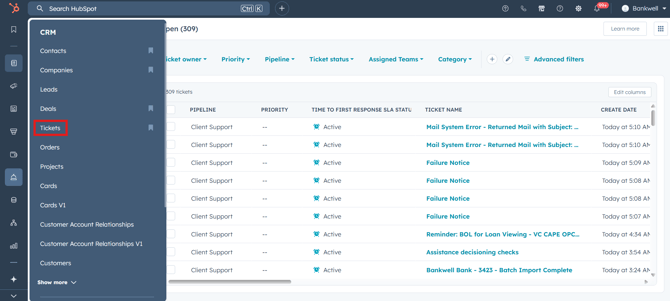
Navigate to your tickets (CRM > Tickets).
-
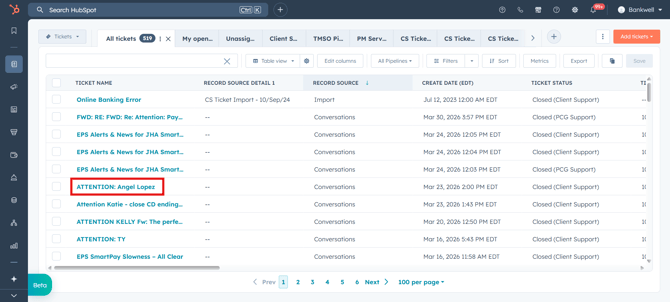
Click the name of the ticket that currently contains the note (for example, ATTENTION: Anjel Lopez).
-
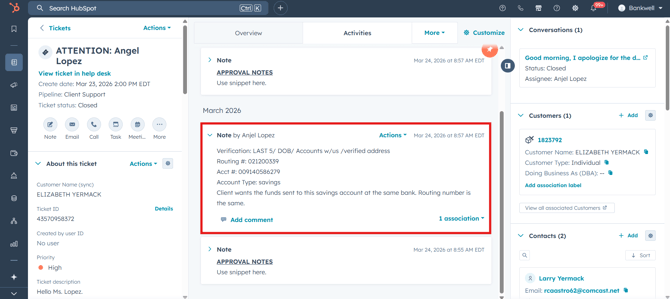
Locate the specific note in the ticket's center activity timeline.
-
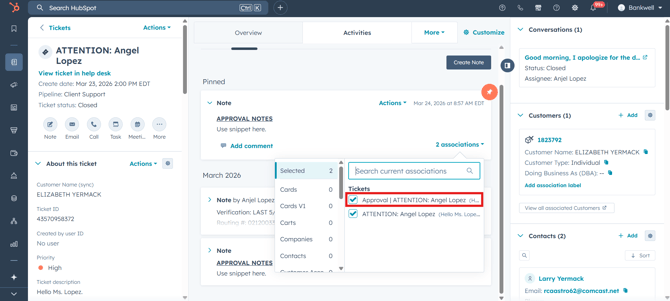
In the bottom right corner of the note, click the [x] associations button.
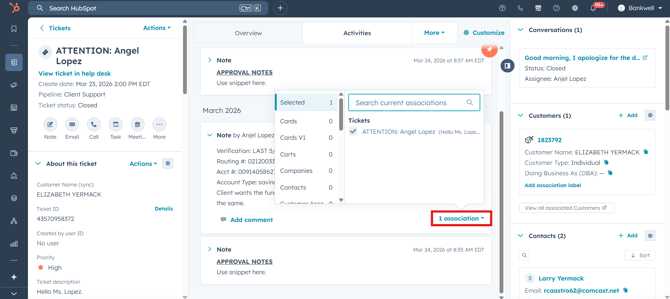
-
In the pop-up box, click the Tickets tab to view only ticket records.
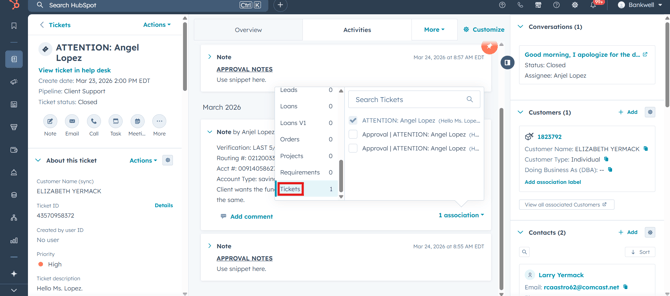
-
Locate the secondary ticket you want to associate the note with:
-
If the second ticket is already associated with the primary ticket, it will readily appear in the list for you to select.
-
If you do not see it immediately, use the Search Tickets field and enter the name or ID of the record.
-
-
Select the checkbox next to the target ticket.
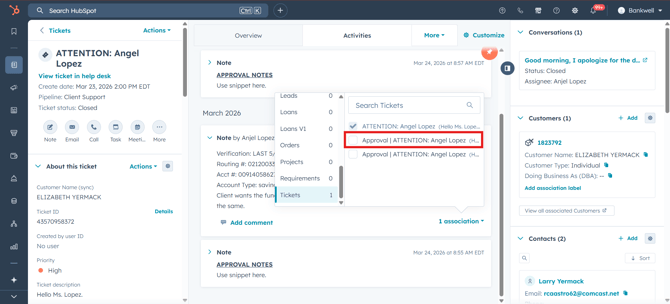
The association is instantly created. If you navigate to the second ticket, you will now see the internal approval note directly on its timeline.
To remove an association from a note:
-
Locate the note you'd like to manage in the timeline.
-
In the bottom right of the note, click [x] associations.
-
Clear the checkbox next to the ticket's name that you wish to remove.